Grade Settings
Grade Settings
Table of Contents
Overview
Based on the grade a student attains while enrolled into one of their courses, we need to determine if they have passed the course and how many points they have earnt towards their GPA.
For instance, A and C grades might both result in a pass, but an A results in a higher GPA. However, a D is a Fail, and so the student should retake the course.
We map these using Grade Settings. Take a look at an example mapping below:
| Grade Range | Grade Points | Grade Result | Grade Value |
| 85 - 100 | 7 | Pass | HD - High Distinction |
| 75 - 84.9 | 6 | Pass | D - Distinction |
| 65 - 74.9 | 5 | Pass | CR - Credit |
| 50 - 64.9 | 4 | Pass | PS - Pass |
| 0 - 49.9 | 0 | Fail | FL - Fail |
| 0 - 100 | 0 | Fail | FA - Fail Absent |
- It is important to include decimals when defining the range, e.g. 75 - 84.9, in case a grade falls between 2 Grade Ranges.
- If a grade falls within a range shared by 2 or more Grade Settings, the system will take the latest/most recently created Grade Setting.
- Do not input values such as < 50, because "<" is not supported. Input the proper value, e.g. 0 - 49.9.
When a Course Connection record receives a grade (this could be via the faculty portal, or through an integration from an LMS system), there will be an input value on either the Course Connection's 'Grade' or 'Grade Value' field.
For example, the student gets a grade of 85. When the grade is released, this will automatically update the Course Connection with:
- Grade Value = HD - High Distinction
- Grade Points = 7
- Grade Result = Pass
Now let's assume some other student has not met the required attendance % for this Course. Regardless of the earned grade, when the grade is released the Course Connection will reflect the following:
- Grade Value = FA - Fail Absent
- Grade Points = 0
- Grade Result = Fail
For more details on releasing grades, see: Releasing student results.
How Grade Settings Work
Grade Settings live under the Educational Institution record. There should be a tab for it where you can see the related list.

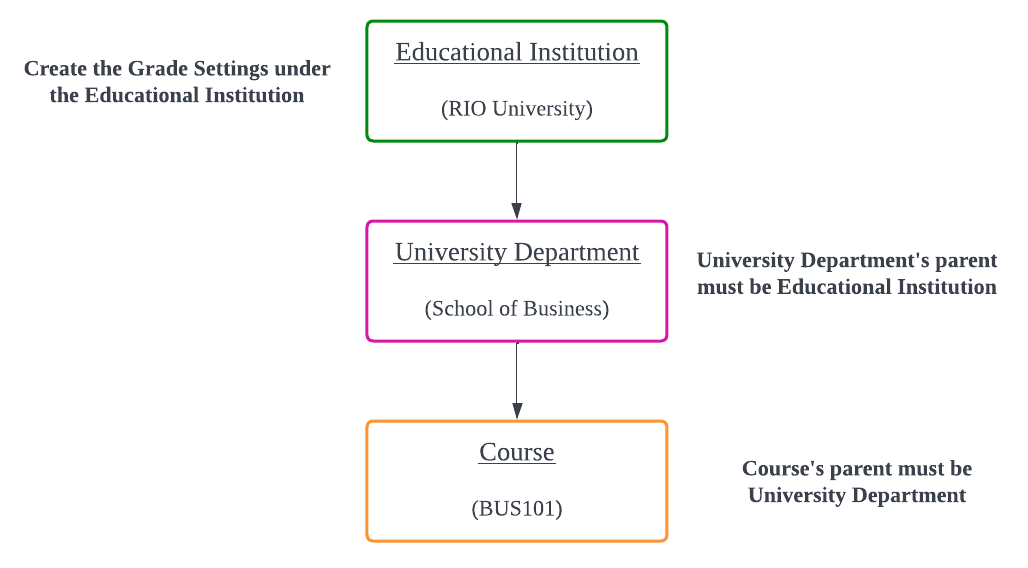
Before you add any Grade Settings, you should make sure your account hierarchy is as follows:
- Educational Institution
- Department
- Course
- Department
This means that all Course records should have a populated Department field (which looks up to a University Department Account), and this Department Account in turns looks up to the Educational Institution account via its Parent Account field.
This is because, when we release the grades on a Course Connection, RIO will look for the Grade Settings based on the parent account of the Course's department. If it can't find any corresponding Grade Settings, you will get an error and you won't be able to release the grades. Consult the following diagram:
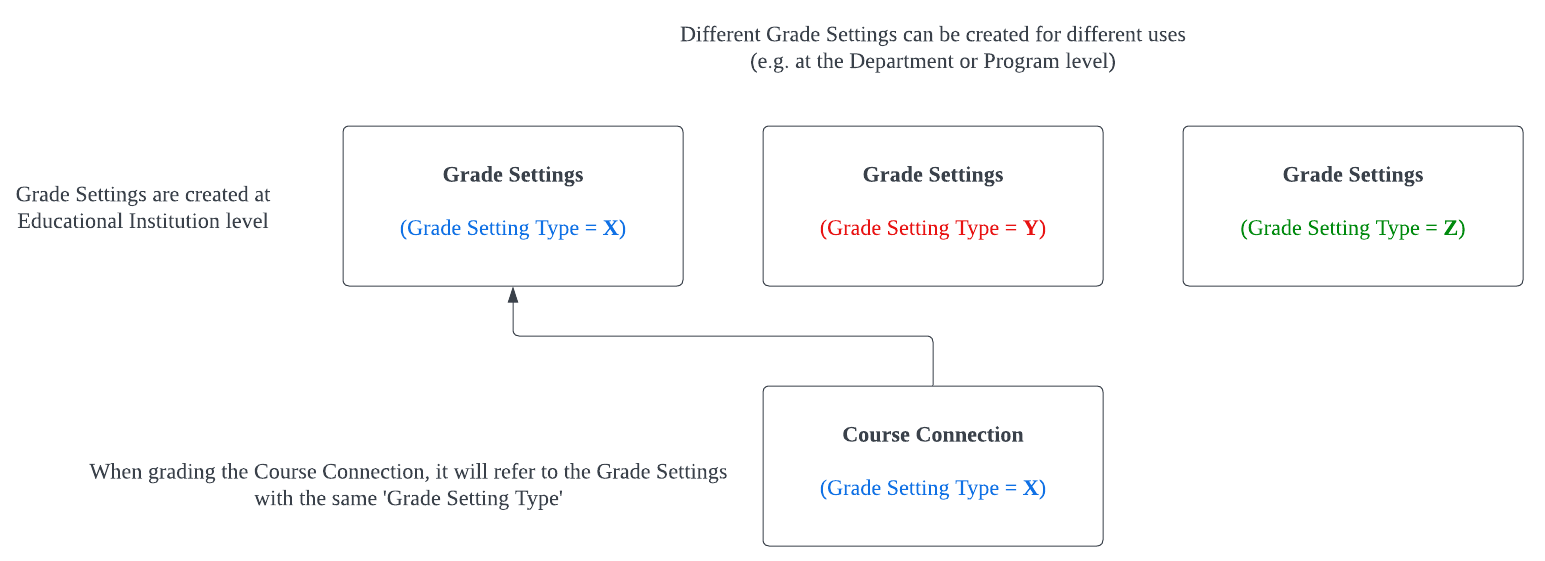
You should also consider the different Grade Setting Types you will need. Perhaps not all of your Courses are marked the same. Some Courses might have a pass mark of 50%, while other be 70%. Some might just be pass/fail. These are all different types of Grade Settings.
By default, RIO comes with two types of Grade Setting Types: Percentage/Letter and Pass/Fail. Keep reading for how to create your own custom types.
For example, this Grade Setting is part of the Percentage/Letter type. If a student scores somewhere between an 85 and a 100, then they will be awarded a High Distinction for that course, and earn 7 points towards their GPA.

Important Notes
- It is recommended to follow a systematic convention when naming your Grade Settings, so you can easily keep track of which does what. In the example above, “RU-HD” denotes that this is the HD grade for RIO University. As we only have the one Type set up, we don't need to differentiate further.
- A Grade Value must be unique within the Type and Institution. For the above example, I wouldn't be able to create a 2nd HD Grade Setting for RIO University that's marked as Percentage/Letter. The validation is enforced via “Grade Setting Unique Key” field, which is automatically populated when you create the Setting record. You may see a value like 001fn00000PGo2gAAD-Percentage/Letter-HD - High Distinction, which is formulated from <ID of the Education Institution>-<Grade Setting Type>-<Grade Value>.
Then when you creates your Courses, you can choose the Grade Setting Type that should be used for marking.
When you create a Course Offering for that Course, by default it inherits the same Grade Setting Type, but this can be overwritten. This can be useful for certain cohorts that need to be held to a higher standard.

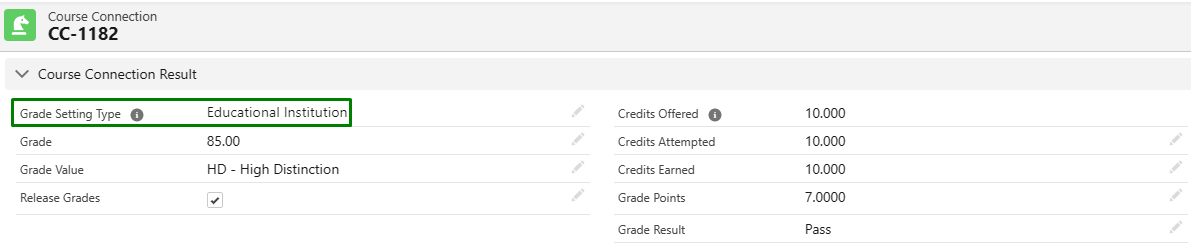
Then, after students have been enrolled and marked, and when it is time to release the grades, RIO will find the Grade Setting that you have created earlier belonging to the same Grade Setting Type, and automatically update the Course Connection with other details tied to that Grade Setting.
So in this example, the student will get a "HD - High Distinction", because this Course Connection is referring to the Grade Setting that was created earlier which defined a grade between 85 and 100 should result in a High Distinction.
Different Grade Setting Types and Hierarchy
Depending on your institution's use case, each Department could have its own grading system.
In this case, instead of just creating one Grade Setting for the whole institution, you'll want to set up multiple Grade Setting Types.
- A default one with Grade Setting Type = Percentage/Letter.
- One (or more) with the Grade Setting Type named after the department in question, i.e. School of Business.
Students who enrol in courses from the School of Business, provided those Courses or Offerings have been set to use the department's type, will have their Course Connections graded using these different grade settings.
When the "Release Grades" checkbox is checked on a Course Connection, the Course Connection's "Grade Setting Type" will follow this hierarchy:
- The Grade Setting Type from the parent Course Offering, if it is defined.
-
Otherwise, it will inherit the Grade Setting Type from the parent Course.
.png)
So for example, the Course has the Grade Setting Type defined as "Educational Institution".
The Course Offering is then created under that Course, whereby:
- In scenario 1, the Grade Setting Type is defined to another value, instead of inheriting the one from its parent Course.
- In scenario 2, no Grade Setting Type is defined for the Course Offering.
Once the student enrolls to the Course Offering, and it it is time to release grades for the Course Connection, the following scenarios play out:
- In scenario 1, the Course Connection's "Grade Setting Type" will follow or inherit the type from it's parent Course Offering.
- Even though the Course has a different type, the Course Offering takes precedence (see the hierarchy description above).
- In scenario 2, since there is no "Grade Setting Type" defined at the parent Course Offering, the Course Connection will then follow the type defined at the Course.
Note: You should always have a Grade Setting Type defined on the Course. The field on the Offering is provided strictly as an override. You should not rely on this for all Offerings, else you run the risk of forgetting which will cause errors when it comes to grade release time.
Creating Different Grade Setting Types
If you need types outside of Percentage/Letter or Pass/Fail, this is supported, but you or your admin will need to do some setup first.
Namely, they will need to add new picklist values to the 'Grade Setting Type' field.
Navigate to Setup > Object Manager > Grade Setting. Then, under the 'Grade Setting Type' field, click on 'View Grade Setting Scope Value Set'.
You can then add new values to the set, with each new value going on its own line
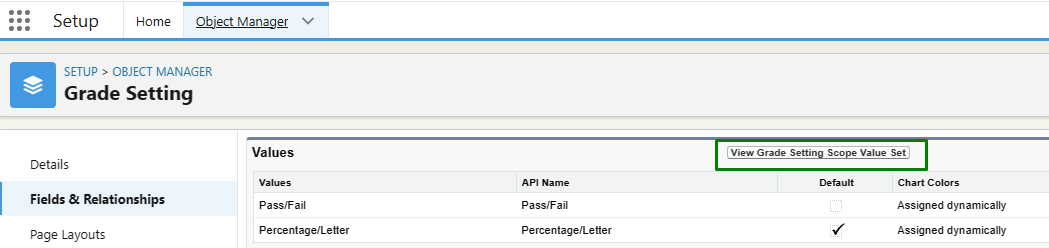
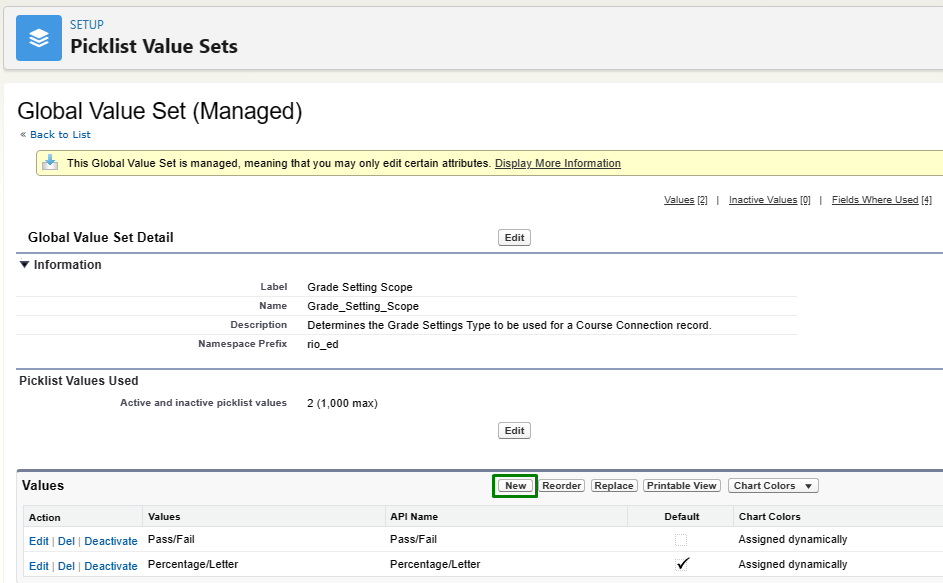
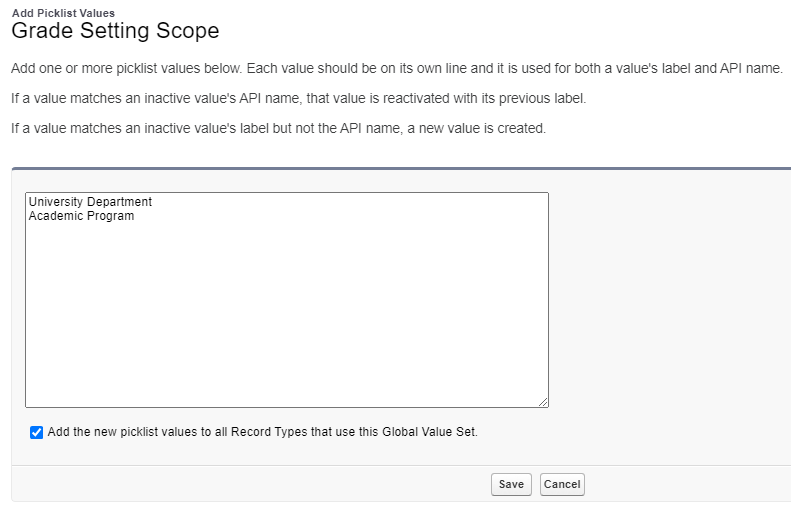
These values will be added to the same picklist field on these objects, unless they have Record Types (but you can check the checkbox in the image above to add them).
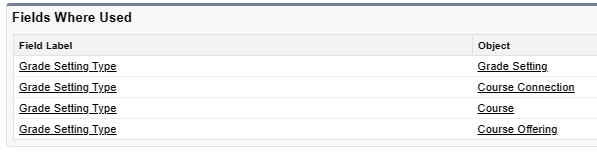
Then, your new option(s) will be available for selection on both Grade Setting records and on Course/Course Offering.
Grade Setting for Mandatory Attendance
If students are required to achieve a certain level of attendance for a Course, a Grade Setting must be created for this requirement, and the 'Fail Absent' checkbox must be checked.
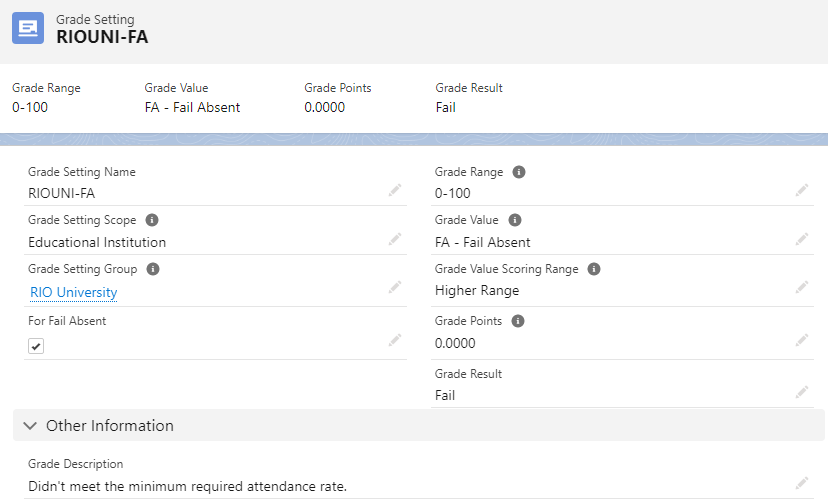
If students fail to meet the required attendance %, releasing the grades on their Course Connection will produce a 'Fail Absent' grade, regardless of the grades they achieved (since the Grade Range defined for Fail Absent is from 0 - 100).
See here for more details.
Ignoring Earned Credits and GPA Contributions
Depending on your business requirements, a withdrawn Course Connection might not be considered in GPA calculations.
You can create a Grade Setting for 'Withdrawn' scenarios, that has these 2 checkboxes checked (TRUE):
- Ignore Credits Earned: This will set the Course Connection's "Credits Earned" to 0)
- Ignore for GPA calculation: This will tell the Completion Engine to ignore the Course Connection during GPA calculation).
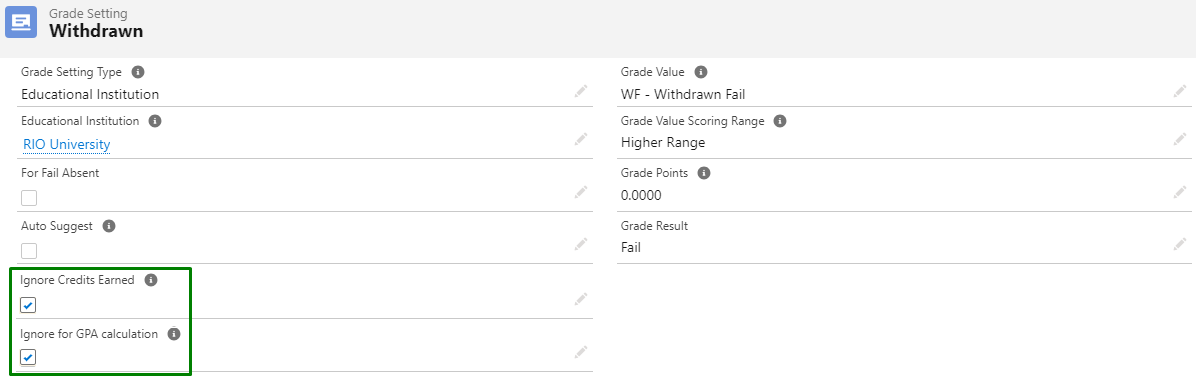
You will also need to enable/check the following in RIO Education Settings (Setup > Custom Settings > RIO Education Settings > Manage Records):
- Respect Grade Setting "Ignore" Setting = TRUE
When the Course Connection is given that particular grade, the Course Connection will automatically have its 'Ignore Credits Earned' and 'Ignore for GPA calculation' checkboxes checked (TRUE) as well.
Important Fields
| Field | Description |
| Educational Institution | The Educational Institution Account that this Grade Setting belongs to. By default, Courses from this Institution will refer to this Grade Setting. |
| Grade Setting Type |
This picklist appears here on the Grade Setting, as well as on the Course, Course Offering, and Course Connection.
If the picklist value on the Grade Setting and the Course matches, the Course Connection will inherit it (unless overridden). When inputting and releasing the grades on the Course Connection, the grade results will refer the matching Grade Settings.
See also: Releasing student results |
| Grade Range |
Grading range, e.g. 80 - 89.9. Note there is no validation to ensure you have not overlapped ranges or left gaps, so make sure to check this manually. Note: It is important to include decimals for the range, such as 80 - 89.9. This is to cover cases where a student's grade (i.e. 89.3) might be between 2 Grade Ranges (80 - 89 and 90 - 100). |
| Grade Value | Determines the level of achievement, i.e. ‘Distinction’ |
| Grade Value Scoring Range |
Value from Grade Range to be used when grading by Grade Value. e.g. if an A corresponds to a range 85-100, setting this field as “Higher Ranger” will mean A = 100, while “Lower Range” will result in an 85. |
| Grade Points | Determines the credits earned upon achievement |
| Grade Result | Determines the ultimate achievement outcome, i.e. pass or fail |
| Grade Setting Unique Key |
A unique key to prevent duplicates Grade Setting with the same grade value. This will be updated by trigger, so no need to set it manually. |
| For Fail Absent | Indicates the particular Grade Setting record is meant for Fail Absent |
| Auto Suggest |
If checked, any auto suggested Grade Settings will show in a popup list when grading a score-based Course. Rather than remembering unique score numbers for special grade types, this allows faculty to see the suggestions and select the matching grade (if applicable). 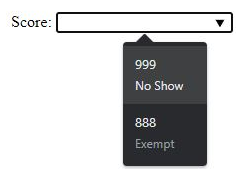 See also: Grading students' Sessions |
| Ignore Credits Earned | If a Course Connection is given a Grade which has this checkbox = TRUE, then, that Course Connection's 'Credits Earned' will become 0 |
| Ignore for GPA calculation |
If a Course Connection is given a Grade which has this checkbox = TRUE, then, that Course Connection's 'Ignore for GPA calculation' will be checked (TRUE) as well. The completion engine will ignore the Course Connection during GPA calculation. |